Showing posts with label avast. Show all posts

Tuesday, December 11, 2012

Top 10 Apps for Samsung Galaxy S3 (Jelly Bean CyanogenMod 10)

If you've rooted your Samsung Galaxy S3 and installed CyanogenMod 10, here are my top 10 must-have apps! These are in no particular order...
How to Root Your Samsung Galaxy S3... and Why? Top 3 Root-Required Apps
How to Upgrade Your AT&T Samsung Galaxy S3 to Jelly Bean 4.1 (CyanogenMod10)... and Why?

  1. GooManager - This makes keeping up with gapps updates super easy. With the specific configuration on my phone (ClockworkMod Recovery) the automated install/update functions don't work. However, searching for the latest version of gapps, downloading it, and rebooting into recovery to install it couldn't be easier. This is a great app to keep on hand and it is official, so it stays up to date unlike some other ROM management apps that check for updates of gapps.
  2. Triangle Away - This is good to keep handy since the Samsung Galaxy S3 has a flash counter. This app allows you to reset the flash counter so that it appears your device has never been flashed. I suggest doing this ONLY if necessary. There are risks involved with running this tool. I keep it handy just in case I decide to flash back to stock and un-root my phone.
  3. Titanium Backup (Pro) - This is a must-have for any rooted Android. This app is a life-saver when it comes to maintaining app data. You can backup and restore any app, even system apps. Same with data. You can even backup and restore bluetooth settings and accounts. Set an automated schedule for backing up apps and store a few versions at a time. You can also sync to Google Drive or Dropbox.
  4. ROM Toolbox Lite (Pro) - This is a 'monster app' according to the developer. That is not an exaggeration as it basically includes the functions of 20+ individual apps. While I like the convenience, I still prefer to use the individual apps intended for these various functions. This app still makes the list though due to its epic feature list.
    • ROM Management is like ROM Manager: a tool for checking for ROM/gapps updates.
    • App Manager is a mix between Titanium Backup and the built-in Android App Manager: allows you to perform a number of operations against any installed app.
    • Root Browser is like ES File Explorer: allows you to browse the root directory and open/edit files.
    • Scripter and Terminal Emulator: allows you to create, save, and run command line scripts and Linux utilities.
    • Ad Blocker: directly edits your hosts file with the proper entries for blocking ads, porn, casino, and risky sites. Also includes a DNS changer tool and app level ad detection settings.
    • Auto Start Manager: like startup management for a PC, this lets you enable or disable broadcast receivers for any app on startup.
    • Configure Apps2SD: allows you to force all apps to install to SD Card or internal storage. Default setting is auto.
    • Rebooter: gives quick access to special reboot options such as reboot, reboot recovery, power down, or reboot the status bar only.
    • CPU Control and Kernel Tweaks: allows you to overclock or underclock the CPU to save battery or boost performance.
    • build.prop Editor: makes editing the build.prop file easy so you can alter the lcd density, decrease call ring delay, increase wifi scan interval, and more.
    • Memory Manager and Task Manager: this is an improvement on the built-in task manager to improve performance and save battery life.
    • SD Booster: makes read/write on the external SD faster by increasing cache size.
    • Font Installer: allows selection from over 150 fonts that can be applied for a custom look.
    • Boot Animations: allows selection from over 300 boot animations that can be applied for a custom look on bootup. You can also use your own custom GIF.
    • Theme Manager and Statusbar Icons: lets you customize your selected theme and install new ones
    • Theme Chooser: allows you to browse 100's of themes available for download (this doesn't work on the current version of CyanogenMod 10 for the AT&T SGS3)
  5. ROM Manager (Premium) - With a ClockWorkMod Recovery rooted Android, this app is obligatory. It offers shortcuts and utilities for functions that can be performed through the actual recovery. You don't really need this, but it can come in handy to keep tabs on updates and to process backups/restores.
  6. BusyBox (Pro) - This is a must-have for any rooted Android. Just install it, run the install process, and you're done.
  7. ES File Explorer - This should be standard for any rooted Android. Install this to gain full read/write access to your internal storage, internal SD card, and external SD card. This (along with DroidEdit) makes tasks like updating the hosts file super easy.
  8. Adobe Flash Player (apk) - Unfortunately, Adobe Flash is no longer supported in Android 4.1+. This means you'll have to download and install Flash from a source other than the Play Store. Luckily, it is super easy to do. The link goes to an XDA forum thread which has more details. It mentions installing Dolphin Browser, but simply installing the Flash apk worked to enable Flash in the default browser in my case.
  9. Headseticon - After installing CyanogenMod 10, I no longer received a headset icon in the notification bar when plugging in an aux cable. This app fixes that and goes the extra step of letting you pick a an icon from an extensive list of options. You can also define a default volume level and even set an app to open when you connect an aux cable.
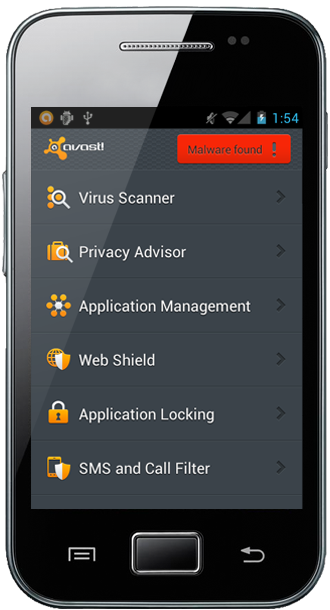
  10. avast! Mobile Security - This is a must have app for any rooted Android. It combines top-of-the-line virus protection, firewall, phone locator, remote phone management, and more to give you the ultimate in security and control of your data's integrity.


Sunday, November 25, 2012

How to Root Your Samsung Galaxy S3... and Why? Top 3 Root-Required Apps

Rooting your Samsung Galaxy S3 has become quite the straight-forward process thanks the mskip over at XDA-Developers. Check out the guide HERE.

But WHY root your brand new phone? The number one reason is that you will gain the ability to use many valuable apps and you will gain full access to your phone's storage. Without root access, you can only manipulate data on your sd card... and so can your apps. With root access, both you and your apps can manipulate data on the actual root storage of your phone.

Here are my top 3 must-have root-required apps:

  1. Titanium Backup
  2. Root Explorer
  3. Avast! Mobile Security (see my other post on Avast!)


Wednesday, August 8, 2012

Android Remote Security Options

Ever wondered just how bad it would be if you lost your smartphone? For many smartphone users it would surely lead to lots of headaches over possible identity theft, fraud, defamation, and a general breach of privacy among other things. While it is easy to set a password lock or lock pattern on your device, it is also easy for a thief to bypass those locks. So what's the answer? Remote security.

iOS users have remote security with a 'locate my device' type of feature built right in called Find My iPhone. Android users don't get this by default out-of-the-box, but do get easy access to tons of apps through the Play Store including a few of the remote security persuasion.

I would venture to guess that Lookout Mobile Security is the most widely used Android remote security option out there, with over 338,000+ ratings on the Play Store. This is for good reason as it offers features such as remote siren, remote wipe, GPS device location, and decent mobile security. Avast! has released a free version of their mobile security app for Android. If you've ever explored PC security options, Avast! is definitely in your vocabulary. They do a great job with desktop security, but how about mobile? Well, they have not disappointed! The Avast! app offers excellent protection against everyday mobile security concerns with security features like anti-virus, web-shield, and even a firewall. This app goes a step further to offer remote security... and the most fully featured I have yet to see.

Some Avast! remote security options include the ability to monitor calls and texts your lost phone sends and receives, push messages to the phone, and of course locate, lock and wipe. You can even automate the behavior on indicators such as too many failed logins or the sim card being swapped out. To top it off, the actual control of the app is well protected. You can custom name the app once installed and set a password for changing settings within the app. The commands you can send to your phone via SMS are extensive to say the least... and you can even create your own custom remote commands! Give it a look below - it will definitely get your gears turning!

Avast! has finally made remote security apps interesting. While locate, lock, and wipe is cool, having the flexibility to interact with your lost device through a wider range of functionality opens up a whole new world of worst-case-scenario disaster recovery options. If your interest is piqued I suggest taking a look at the  Avast! documentation to see just how many commands you can throw at your lost Android... have fun setting it all up!

Lookout Mobile Security remote (web) commands
LOCATE
Pinpoint device on map.

SCREAM

Sound alarm on device.

LOCK

Prevent use of device.

WIPE

Delete data on device.


All SMS commands must begin with your avast! password. For example, if your avast! password is set to 2222, a lock command should look like this:

2222 LOCK
LOST
Sample: 2222 LOST
Marks the phone as LOST. This command initiates the same actions as a SIM card change, depending on the protection behavior settings.
FOUND
Sample: 2222 FOUND
Marks the phone as FOUND. This command disables the phone lock as well as the siren alarm.
LOCK
Sample: 2222 LOCK
Lock the mobile phone
UNLOCK
Sample: 2222 UNLOCK
Unlock the mobile phone
MESSAGE <message text>
Sample: 2222 MESSAGE Give back my phone!
Will display a message on the phone. Can be dismissed. Use LOCK and SET LOCKTEXT to display a sticky message
SIREN ON
Sample: 2222 SIREN ON
Turn siren on
SIREN OFF
Sample: 2222 SIREN OFF
Turn siren off
LOCATE
Sample: 2222 LOCATE
Locate the device
LOCATE <interval duration in minutes>
Sample: 2222 LOCATE 5
Track the device continuously
LOCATE STOP
Sample: 2222 LOCATE STOP
Stop continous tracking
CALL [phone number]
Sample: 2222 CALL
Sample: 2222 CALL +43660333555
If no phone number is given this command causes the phone to call you back. If you give the phone number the phone will call the given number
FORWARD SMS [phone number]
Sample: 2222 FORWARD SMS
Sample: 2222 FORWARD SMS +43660333555
If no phone number is given, incoming SMS will silently be forwarded to the phone that sent the command. If a phone number is given, incoming SMS will be forwarded to the given phone number. This command overrides all previously issued SMS-forwarding-settings.
The forwarding can be cancelled by issuing the FORWARD SMS STOP command or by launching avast! Anti-Theft.
CC SMS [phone number]
Sample: 2222 CC SMS
Sample: 2222 CC SMS +43660333555
Same as FORWARD SMS, but will not delete the SMS after forwarding which means that the forwarded SMS will still be delivered to the target phone (CC means carbon copy). This command overrides all previously issued SMS-forwarding-settings.
The forwarding can be cancelled by issuing the CC SMS STOP command or by launching avast! Anti-Theft.
CC CALLS [phone number]
Sample: 2222 CC CALLS
Sample: 2222 CC CALLS +43660222333
By issuing this command you can request SMS notifications about incoming calls. The notifications will be sent to the phone that issued the command if no other phone number is given. This command overrides all previously issued call-forwarding-settings.
We did not implement direct forwarding of the calls as this works differently in the networks around the world. Also it is not possible to hide the forwarding settings from the thieves eyes reliably.
The forwarding can be cancelled by issuing the CC CALLS STOP command or by launching avast! Anti-Theft.
CC ALL [phone number]
Sample: 2222 CC ALL
Sample: 2222 CC ALL +43660222333
Combines the CC SMS and the CC CALLS command. This command overrides all previously issued SMS- and call-forwarding- settings.
The forwarding can be cancelled by issuing the CC ALL STOP command or by launching avast! Anti-Theft.
WIPE
Sample: 2222 WIPE
Wipe all data from the phone
GET <query limit> SMS
Sample: 2222 GET 10 SMS
Query SMS messages
GET <query limit> INBOX SMS
Sample: 2222 GET 10 INBOX SMS
Query received SMS messages
GET <query limit> SENT SMS
Sample: 2222 GET 10 SENT SMS
Query sent SMS messages
GET <see above> SMS FOR <phone number>
Sample: 2222 GET 10 SMS FOR +43660333555
Query SMS messages matching the phone number given
GET CONTACTS
Sample: 2222 GET CONTACTS
Query the contacts from the address book
GET LOG <query limit>
Sample: 2222 GET LOG 10
Query the call and SMS log
LAUNCH
Sample: 2222 LAUNCH
Launches avast! Anti-Theft user interface
CLOSE
Sample: 2222 CLOSE
Closes avast! Anti-Theft user interface
REBOOT
(only for rooted devices)
Sample: 2222 REBOOT
Reboots the device
SET OWNER <name of owner>
Sample: 2222 SET OWNER Charles Chaplin
Will change the device owner name
SET PASSWORD <access code>
Sample: 2222 SET PASSWORD 3333
Will change the avast! password. You will need to provide a password of 4-6 digits
SET FRIEND 1 <phone number>
Sample: 2222 SET FRIEND 1 +43660122220192
Will change the phone number of the first friend. Provide a valid mobile phone number
SET FRIEND 2 <phone number>
Sample: 2222 SET FRIEND 2 +43660122220192
Will change the phone number of the second friend. Provide a valid mobile phone number
SET ONLYFRIENDS <friends mode>
Sample: 2222 SET ONLYFRIENDS 1
Will change the SMS command authorization mode (0 = allow all numbers, 1 = allow only friend commands)
SET LOCKMODE <lock mode>
Sample: 2222 SET LOCKMODE 1
Will change the phone lock protection behavior (0 = do not lock, 1 = auto lock)
SET SIRENMODE <siren mode>
Sample: 2222 SET SIRENMODE 1
Will change the siren protection behavior (0 = no siren on lock, 1 = siren on lock)
SET APPLOCKMODE <app lock mode>
Sample: 2222 SET APPLOCKMODE 1
Will change the program manager or phone setting protection behavior (0 = no setting active, 1 = deny program manager, 2 = deny phone settings)
SET USBLOCKMODE <USB lock mode>
(only for rooted devices)
Sample: 2222 SET USBLOCKMODE 1
Will change the USB debugging access protection behavior (0 = do not lock USB debugging access, 1 = lock USB debugging access)
SET FORCEDATAMODE <force data mode>
(only for rooted devices)
Sample: 2222 SET FORCEDATAMODE 1
Will change the force data connection protection behavior (0 = do not force data connection, 1 = force data connection)
SET BATTERYSMSMODE <battery mode>
Sample: 2222 SET BATTERYSMSMODE 1
Will change the low battery notification protection behavior (0 = do not notify on low battery, 1 = notify on low battery)
SET LOCKTEXT <lock text>
Sample: 2222 SET LOCKTEXT Please call me back at +4313283483
Will change the custom lock text
SET AUTOGPS <gps mode>
Sample: 2222 SET AUTOGPS 1
Will enable or disable automatic enablement of GPS (0 = turn off, 1 = turn on)
SET WIPEMODE <wipe mode>
Sample: 2222 SET WIPEMODE 1
Will enable or disable thorough wipe (0 = turn off, 1 = turn on)
SET PROTECTION <protection mode>
Sample: 2222 SET PROTECTION 1
Will enable or disable Anti-Theft protection (0 = turn off, 1 = turn on)
Caution: By using this command you will completely disable the Avast! Anti-Theft system thus rendering the Anti-Theft protection useless.

Implement own remote commands

Avast! Anti-Theft is able to launch any programs on the phone and pass data to the launched program.
SMS command: <Activity or service name, fully qualified> <arguments>
Samples:
2222 at.domain.package.Activity Test will start the activity OR service at.domain.package.Activity and pass Test as an parameter to it.
2222 at.domain.package.Activity This is my command line will start the activity OR service at.domain.package.Activity and pass This is my command line as an parameter to it.
The activity or service needs to be positioned on the root of the package (sub-packages are NOT supported).
Data transfer is done via Intent:
Intent i = new Intent();
i.setFlags(Intent.FLAG_ACTIVITY_NEW_TASK);
i.putExtra("number", origNumber);
i.putExtra("cmd", data);
i.setComponent(cName);
This means you can then read (in your service or activity) the sender number in the String extra number and the command from the String extra cmd.
Anti-Theft always tries to start an Activity first, if none is found it tries to start a Service, if this fails it will reply with an error SMS.